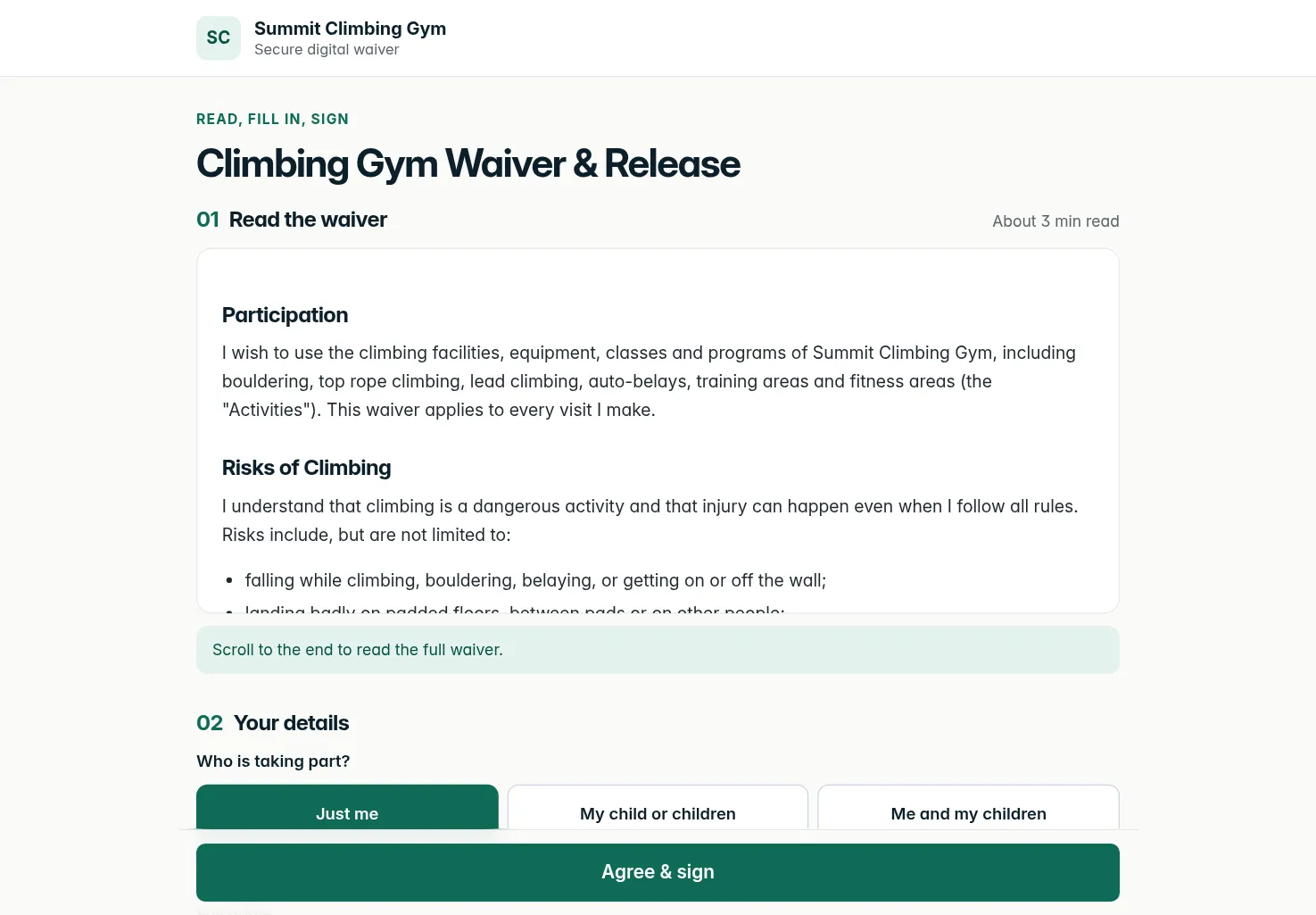
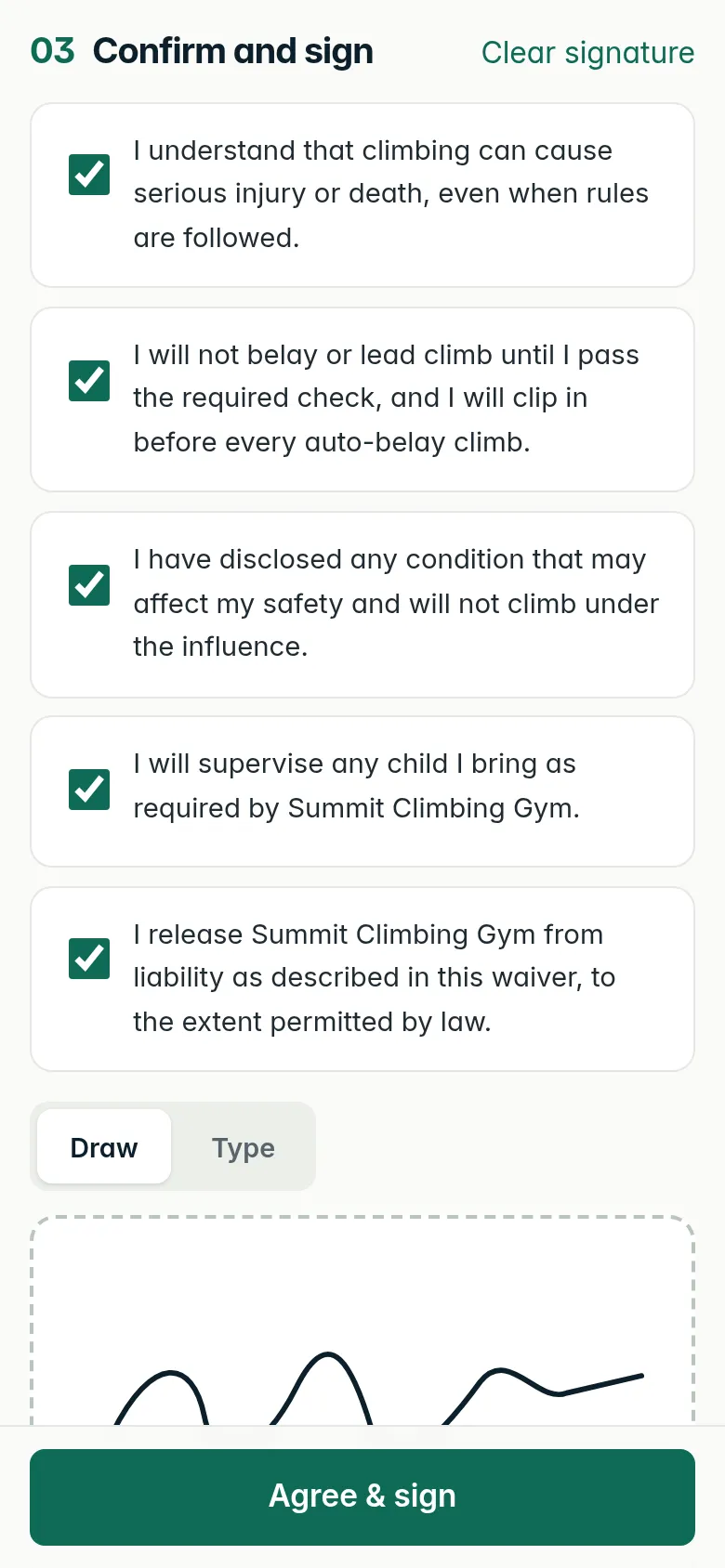
A waiver kiosk is a tablet at your front desk where customers sign their waiver on arrival. With FairWaiver, any iPad, Android tablet or touchscreen computer becomes a waiver kiosk in a couple of minutes: open kiosk mode in the browser, hand the tablet over, and it resets for the next person after every signature. There is no app to install, and kiosk mode is included on every plan, including Free.
How FairWaiver kiosk mode works
Runs in the browser. Kiosk mode is a web page. It works in Safari, Chrome, Edge or any modern browser, so you do not need a special app, an app store account or updates on the device.
Resets after each signer. When someone finishes signing, they see a short confirmation, then the kiosk returns to a blank waiver for the next person. Nobody sees the previous customer's name, answers or signature.
Resets when someone walks away. If a customer starts a waiver and leaves, the kiosk clears itself after 2 minutes of no activity.
All-forms kiosk. Have several forms, such as an adult waiver, a minor waiver and a rental agreement? The all-forms kiosk shows a simple menu where customers pick the right one, then returns to the menu after they sign. If you link forms in a chain, the kiosk walks each person through them in order and then goes back to the start.
Families in one go. A parent or guardian can sign for one or more children on the same waiver, adding each child's name and date of birth. When you collect dates of birth, under-18 signers are stopped from signing for themselves.
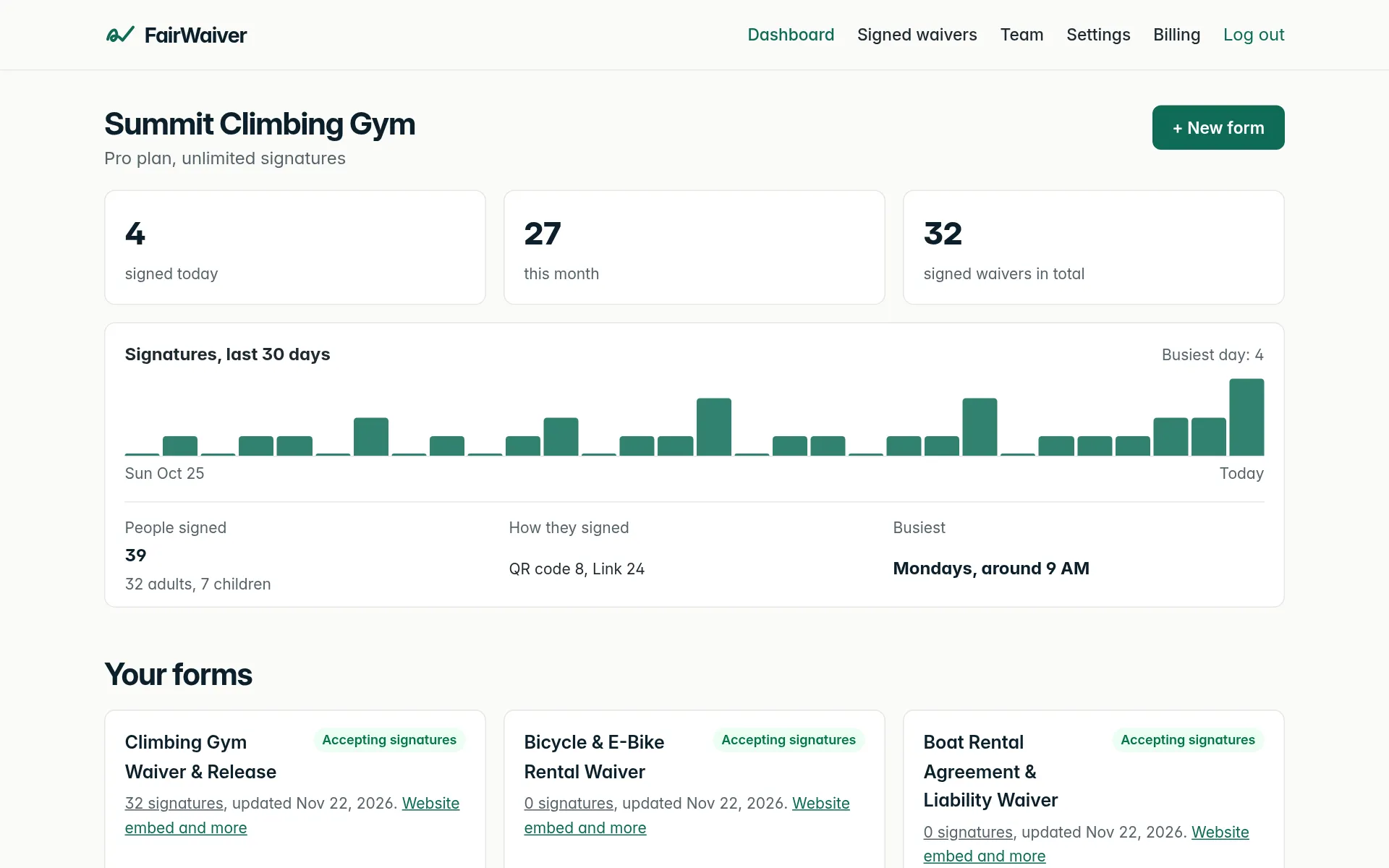
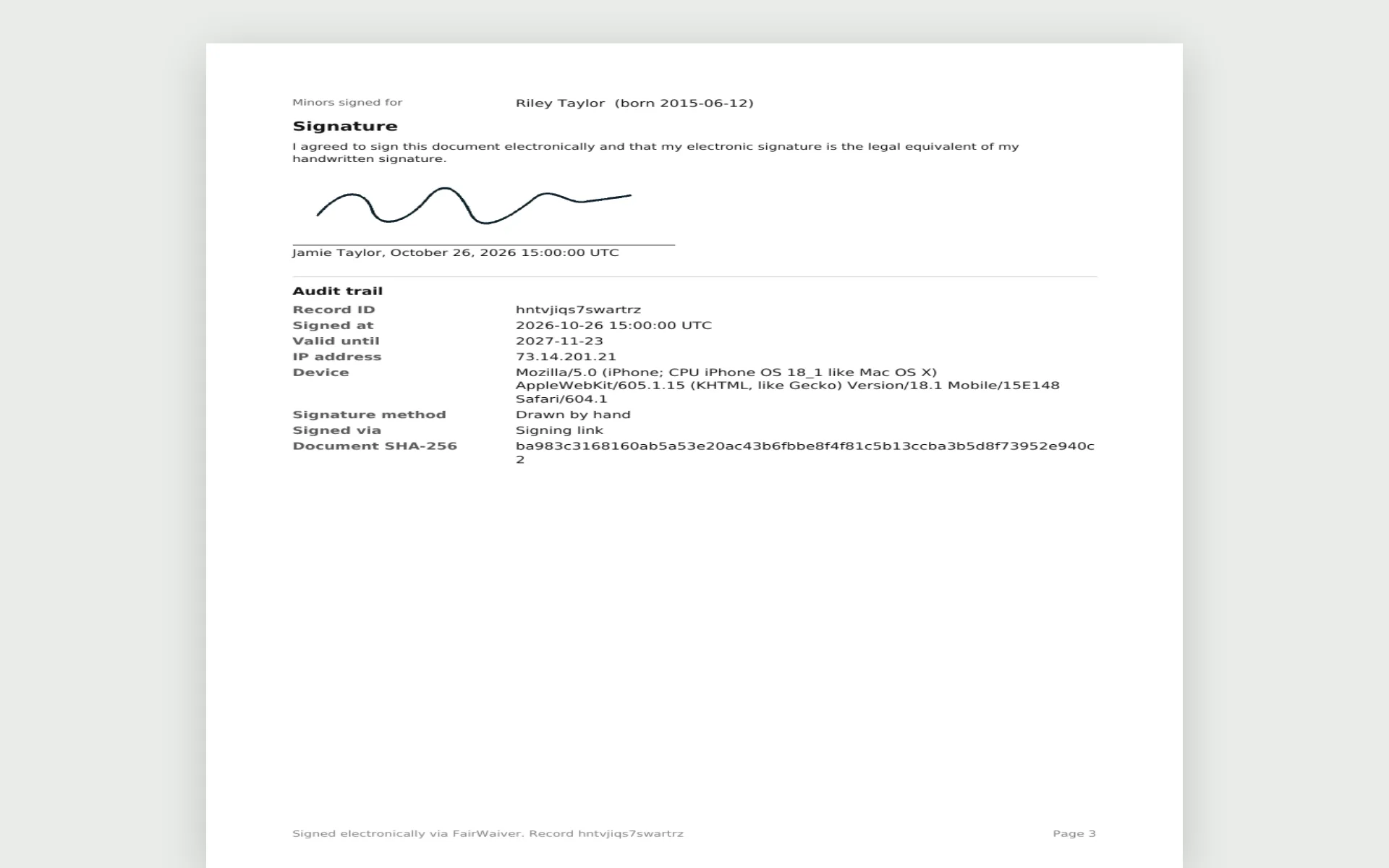
Records appear instantly. Each signature lands in your archive the moment it is signed, with a signed PDF emailed to the signer and an audit trail of time, IP address, device and document fingerprint. Kiosk signatures are marked as kiosk in the audit trail, and staff can check people in from the "Signed today" view.
Set up your waiver kiosk in 5 steps
- Create your waiver. Upload the waiver you already use as a PDF, Word file or photos, or start from a template such as the gym waiver or trampoline park waiver.
- Open kiosk mode. On your form page, tap "Open kiosk mode" on the tablet. If you have several forms, copy the all-forms kiosk link instead.
- Add it to the home screen. In Safari, tap Share, then "Add to Home Screen." In Chrome on Android, use the menu and "Add to Home screen." Staff can reopen the kiosk with one tap.
- Lock the tablet to the kiosk. Use Guided Access on iPad or screen pinning on Android (see tips below) so customers cannot leave the browser.
- Test it. Sign once yourself, walk away for two minutes and check that it resets. Then put it on the counter.
Hardware tips
You do not need special kiosk hardware. What works well:
- Any recent iPad or Android tablet. A 10 to 11 inch screen is comfortable for reading and signing. An older tablet you already own is fine, as long as it runs an up-to-date browser.
- A sturdy stand. A countertop stand with a tilt makes signing with a finger easy. A locking enclosure helps in busy or unstaffed areas.
- A stylus on a tether. Optional, but many customers prefer signing with a pen, and a tether keeps it from walking off.
- Power. Keep the tablet plugged in, and set the screen to stay on longer (or never sleep) while it is on the stand.
- Reliable internet. FairWaiver kiosk mode needs Wi-Fi or mobile data. It does not work offline, so check the signal where the tablet will sit.
- More than one tablet for busy times. Several tablets can run the same kiosk at once. There is no per-device fee.
Lock the tablet with Guided Access or screen pinning
- iPad (Guided Access): go to Settings, Accessibility, Guided Access and turn it on with a passcode. Open the kiosk, triple-click the top or Home button and tap Start. The iPad stays in the browser until a staff member ends Guided Access with the passcode.
- Android (screen pinning): go to Settings, Security (or Security and privacy), and turn on app pinning or screen pinning. Open the kiosk, open Recent apps, tap the browser icon and choose Pin. Unpinning needs the device PIN.
Menu names differ a little between devices and versions, so check your device's help pages if you cannot find the setting.
Kiosk or QR code?
A kiosk is great for walk-ins and families. A QR code is often faster at busy times, because everyone signs on their own phone at the same moment. Many businesses use both:
- QR code poster at the entrance or in the line, so people sign while they wait.
- Kiosk at the desk for people without a phone, or parents signing for several children.
- Link in the booking confirmation, so most customers arrive already signed.
FairWaiver includes all three on every plan, plus a website embed and email invitations. Every signer gets the same signed PDF and audit trail, however they signed.
Pricing
Kiosk mode is included on the Free plan (1 active form, 25 signatures a month) and on Pro ($15/month or $150/year, unlimited signatures and forms). There are no per-device or per-signature fees. Some waiver tools reserve kiosk mode for higher plans or require their own app, so compare before you buy. Our best waiver software guide has the details.
Is a browser kiosk right for you?
Choose FairWaiver's browser kiosk if you have internet at your desk and want the simplest setup. If you sign waivers in places with no signal at all, such as a remote trailhead or a boat dock, look for a tool with an offline kiosk app instead. For everything else, a tablet, a stand and a browser are all you need. Learn more about online waiver software.